Run the live room
Before the session, upload and preview your video, activate any surveys, create file packs, and check the webinar's schedule and registration page.
Configure the player
- Open Studios and click your studio card to join as its organizer.
- Select Configure player in Room controls.
- On Player, choose the video in Media. Select the surveys and file packs you want to use.
- Check survey status badges. Draft and closed surveys need to be activated in the survey editor.
- Open Timeline and set Available at start, or add timed cues for the selected tools. Selection on Player alone does not schedule their availability.
- Select Save configuration. The selected media appears in the room. Start playback to evaluate the saved tool availability.
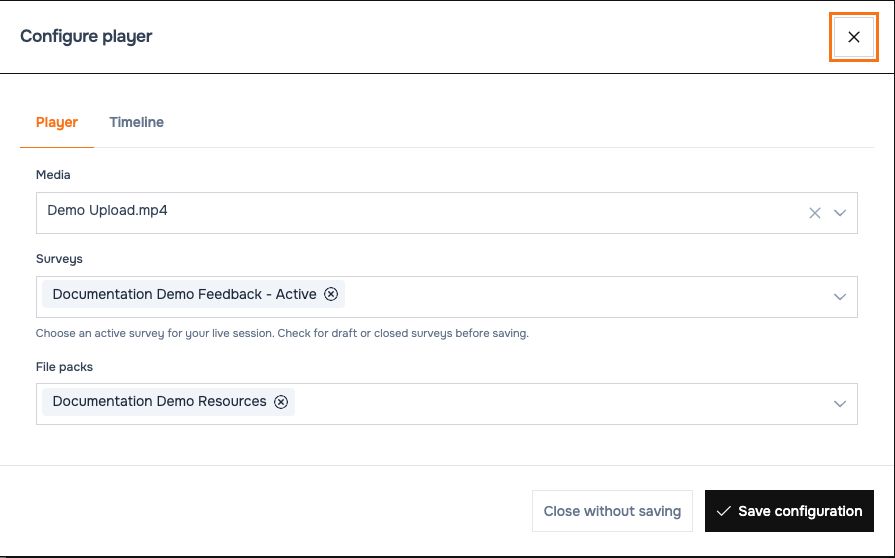 Select the media and tools that belong to this session.
Close without saving discards changes to the dialog. If no media is selected, the room shows Configure the player instead of a video. Reopen Configure player to correct it.
Conduct playback
- Confirm the correct video is loaded and your audio works.
- Use the player's play/pause control to lead the session. Host playback changes synchronize to participants.
- Seek only when you intend to move the session to that position. Timeline availability follows the selected playback position.
- Open tools beside the player to inspect surveys, files or private chat. Close an open tool with its Close control.
- Watch Connected now to see the current participant count.
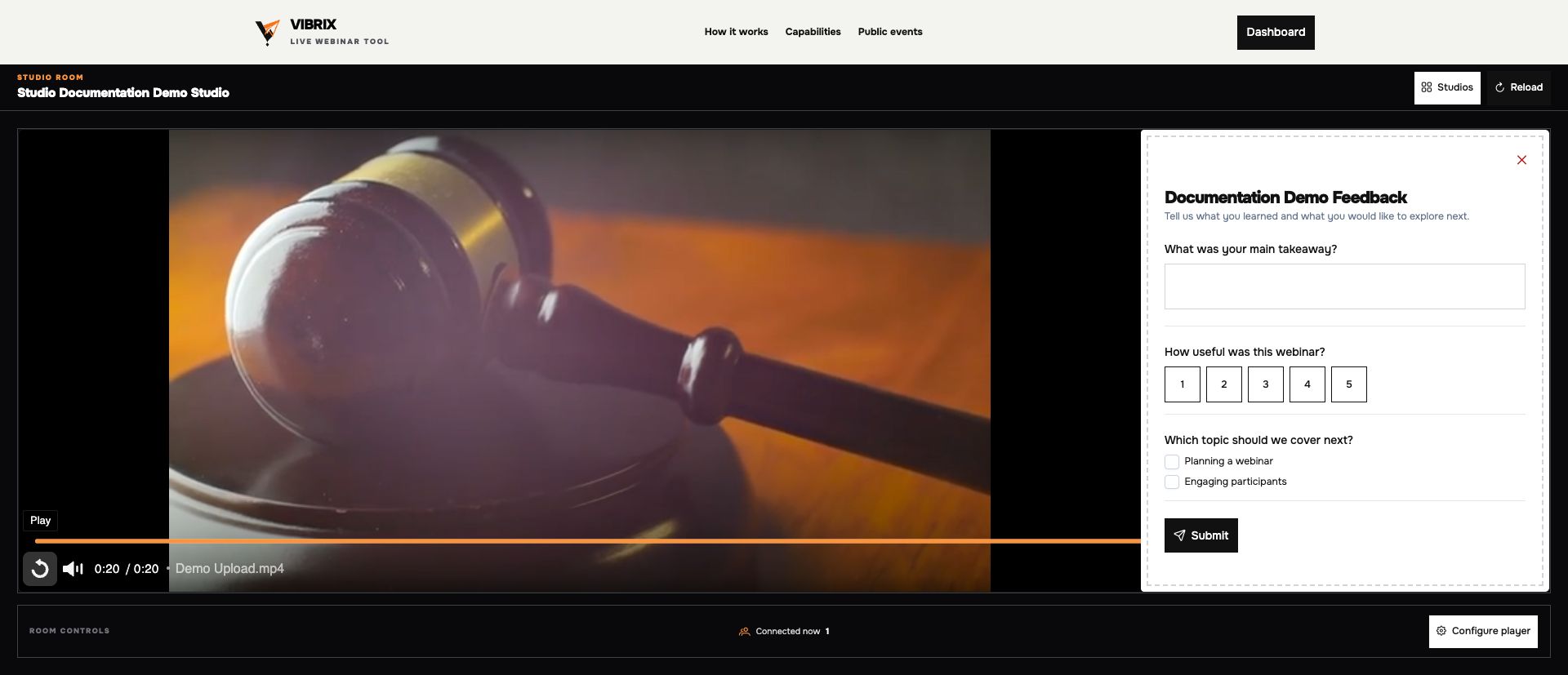 The demo video has completed and its timeline cue has opened the feedback survey.
The organizer controls shared playback. Participants may still need to interact with the browser to allow media/audio playback, and can use local playback settings that remain available. The media uploader's camera/screen recording options prepare media; this room presents the selected video.
Keep the session on track
- Connected now is a live count, not total registration or attendance history.
- Connection interrupted. Reconnecting… means live updates were interrupted. Refreshing live state… indicates recovery is underway. Wait for normal operation, then use Reload if necessary.
- If a tool is missing, check its selection on Player, its lifecycle status, and its timeline availability.
- Late arrivals should use their own event link. Do not give them another attendee's link.
Finish the session
Let the video finish or pause it when presentation is complete. Returning to Studios is navigation; do not assume it is an “end webinar for everyone” control. Admission follows the webinar's schedule and status, and configured follow-ups run according to event timing.
Afterward, open Reports. Recheck the studio's saved video and timeline before reusing it for another event.