Create and manage webinars
A webinar connects a scheduled event and its registration process to a studio. You need a studio before saving the event; the event form offers Create your first studio when none exists.
Schedule a webinar
- Open Webinars → New Event.
- Select Studio and enter Title. These identify the room and the name shown to attendees.
- Set Start, Duration in minutes and Timezone. The editor accepts durations from 15 to 180 minutes and displays the resulting end time.
- Review Private event. It is enabled by default and hides the event from the public calendar; it does not restrict registration to an invitation list.
- Set Maximum participants. Use
0for unlimited capacity. Write a Message when full to replace the registration form when capacity is reached. - Review the optional sections, then select Create event.
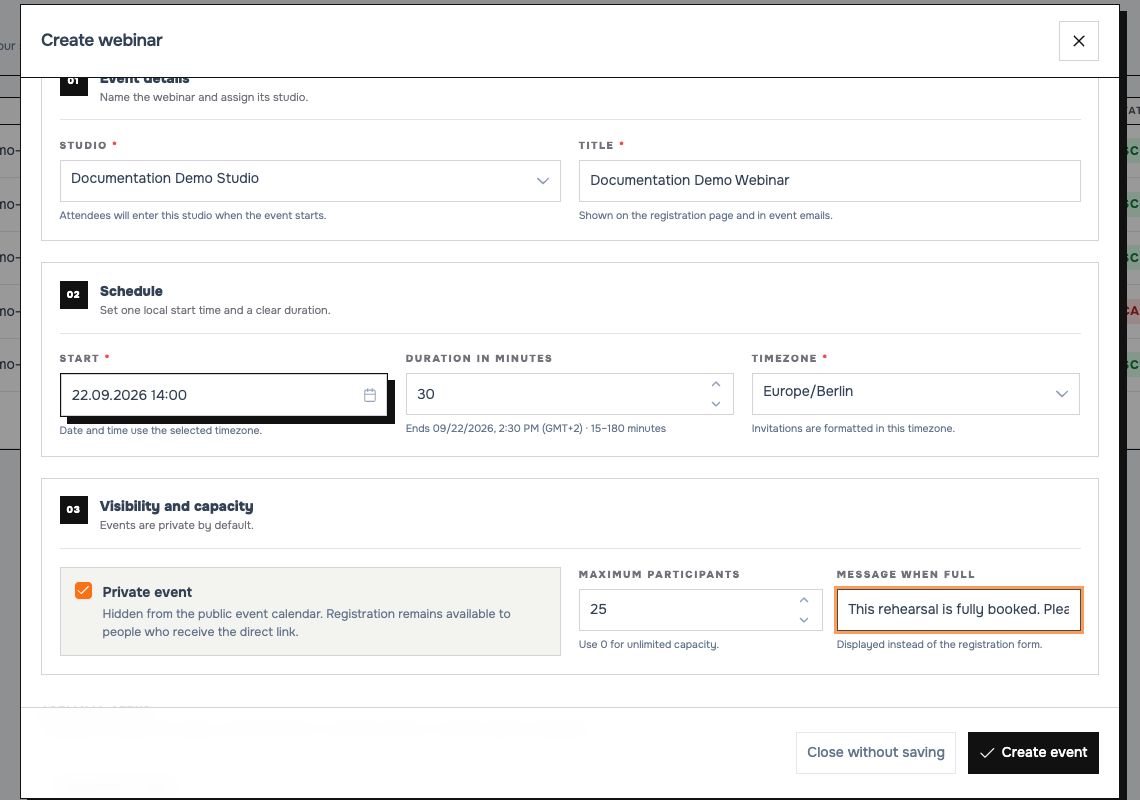 The event's local time is interpreted in the selected time zone. Always check the displayed end time.
Refine the saved webinar
Use Edit webinar in the event row to reopen its settings. Select Save event changes after editing; Close without saving discards the form changes, with a separate confirmation for unsaved registration-page design when needed.
- Registration page and form: templates, content design, identity fields and extra questions.
- Access Lists and registration links: contact lists, blocks, imports and attendee entry.
- Emails and delivery: confirmation text, reminders, cancellation notices and follow-ups.
Save a new event before choosing Customize page or uploading registration-page images. Use Preview page to review the form without submitting a registration.
Find events and registrations
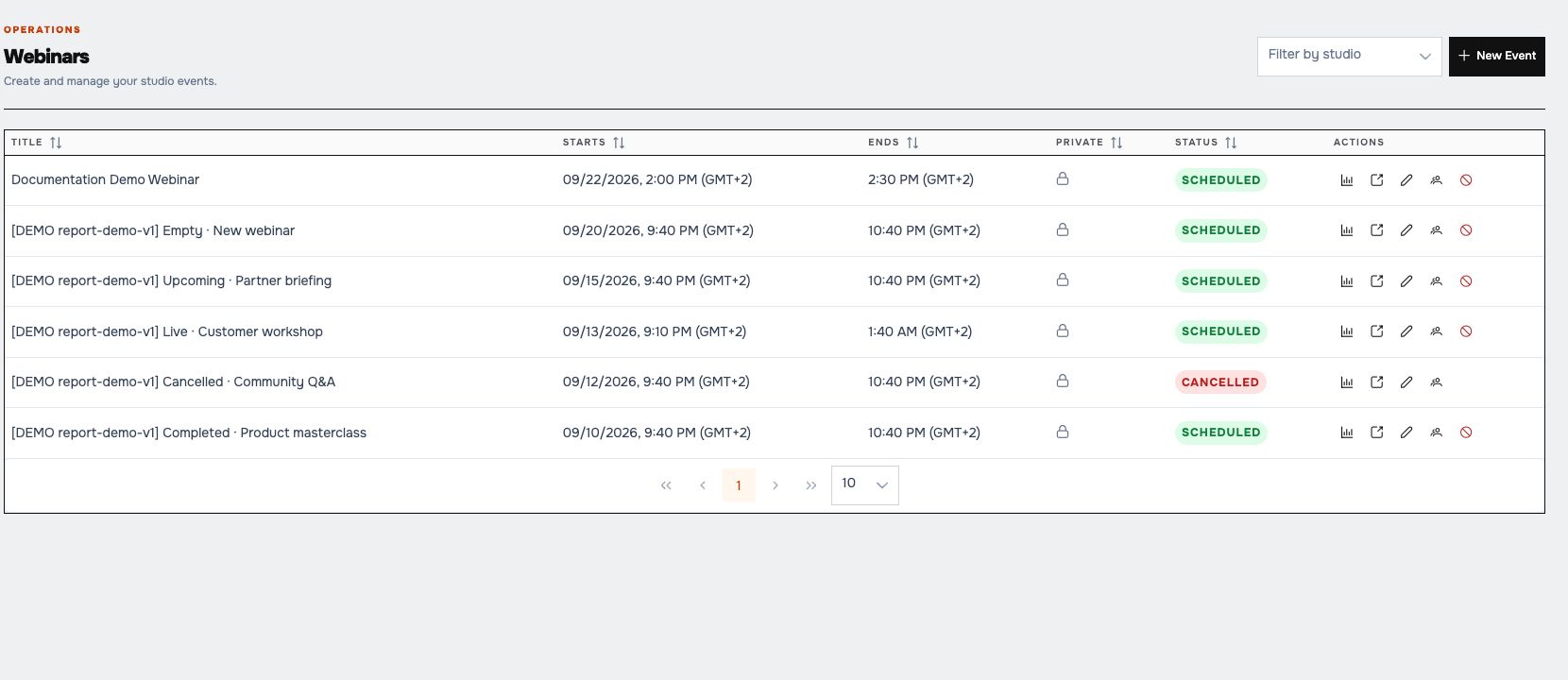 Each row provides report, registration-page, edit, registrations and cancellation actions.
- Use Filter by studio to narrow the list. Sort the table with its column headers and use pagination for more events.
- Select Open registration page to inspect the attendee-facing page.
- Select View registrations to see names, email addresses, registration times and attendance. Use Back to events to close the dialog.
- Select View event report for detailed results and exports.
The manager can display scheduled for an event whose end time has passed. The Reports page derives Upcoming, Live and Ended from the schedule; Cancelled is a separate state.
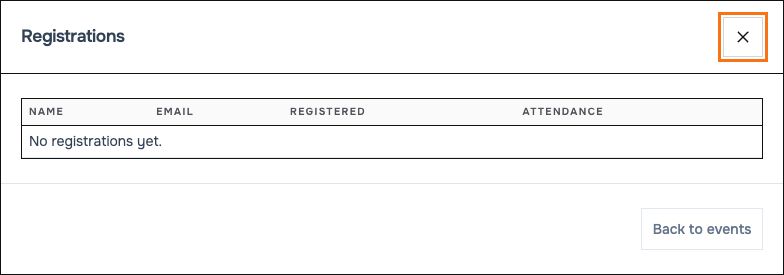 Use Back to events to leave the registration list.
Cancel a webinar
Select Cancel webinar in the intended row and review the confirmation before accepting. Cancellation prevents normal admission. If Send cancellation notice is enabled, cancellation can send notices immediately to registered attendees. Review that option first; the demo does not cancel any existing events.
Next: Design registration, then run the room.