Manage studios
A studio is the room your audience joins. Create it once, configure its content, and select it when scheduling webinars.
Create and enter a studio
- Open Studios → New Studio.
- Enter a Name such as Documentation Demo Studio.
- Configure access restrictions if needed, then select Create studio.
- Click the new studio card to Join. The owner sees room controls and Configure player.
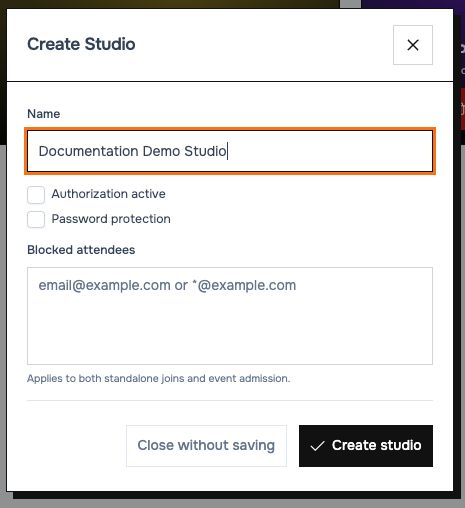 Access settings belong to the studio and can affect events that use it.
Edit access settings
Select Edit on a studio card, adjust the settings, and select Save studio changes.
| Setting | Effect |
|---|---|
| Authorization active and Allowed attendees | Limit standalone joins to the listed email addresses. Event magic links bypass this allow list. |
| Password protection | Require the studio's password through the applicable entry flow. |
| Blocked attendees | Block listed addresses for standalone joins and event admission. Accepts an address or an exact-domain pattern such as *@example.com. |
Use one allowed address per line. Domain blocks apply to that exact domain; add a separate entry for a subdomain. Review the event access guide to understand how webinar rules combine with studio rules.
When editing an existing protected studio, leaving the password field blank keeps the current password. Remove password stages removal; save the studio changes to apply it. Close without saving exits without applying the form.
Monitor and maintain
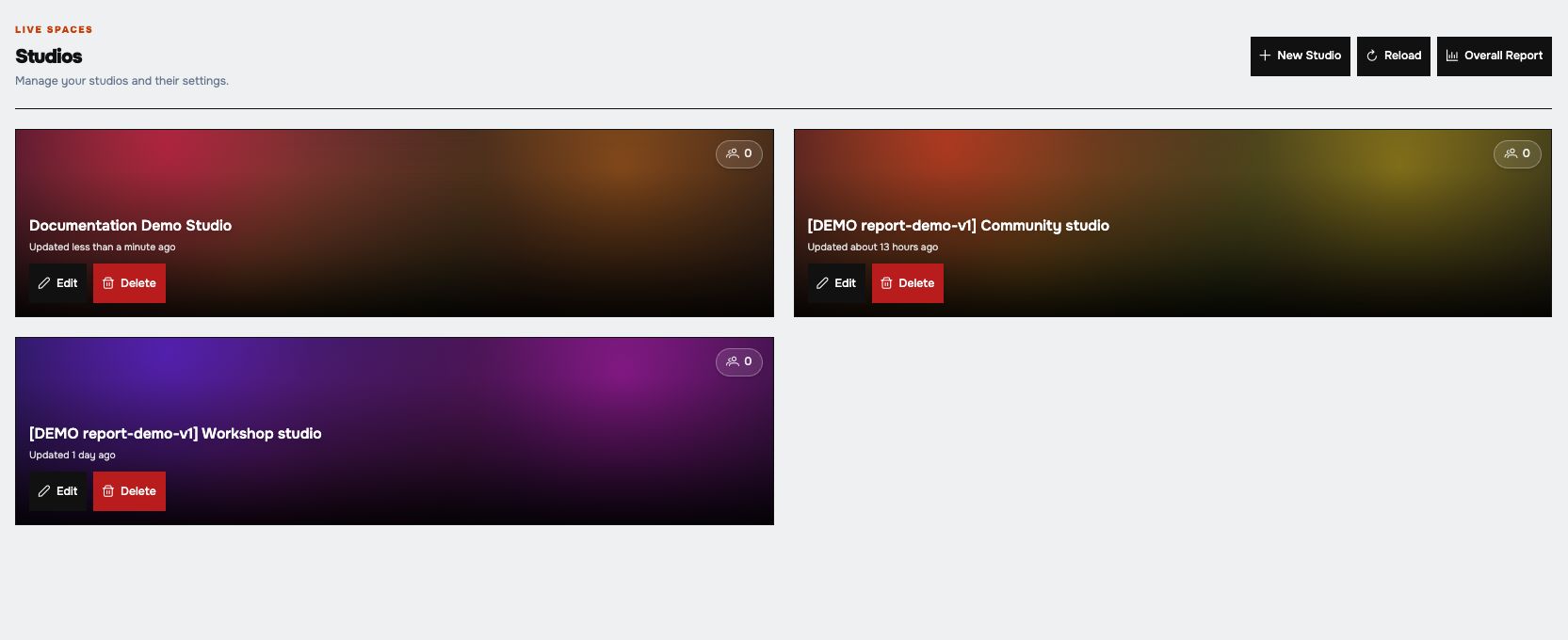 Each card provides entry, editing, deletion and a current participant count.
- The participant badge shows the current connected count; it is not the total number of registrations.
- Lock/key indicators show enabled authorization/password settings.
- Reload updates the studio list and counts.
- Overall Report currently only displays “Report generation started”; it does not produce a report or download in this version. Use Reports for working webinar reports and exports.
- Delete opens a confirmation. Check associated webinars and the selected studio before accepting; deletion is not part of the demo walkthrough.
Reusing a studio also reuses its configured player and tools. Recheck the selected content before every session and avoid scheduling simultaneous webinars in the same room.
Next: Create a webinar or configure the live room.