Reports and results
Use reports to review registrations, admission, invitation comparisons, private conversations and webinar-linked survey responses. Start with a webinar, then open the tab matching the question you want to answer.
Find a webinar
- Open Reports.
- Search with Search events or studios, optionally choose Filter event status, and use the table's sorting/pagination.
- Select the event title or View report. The webinar manager also has View event report.
- Select Refresh to retrieve current results.
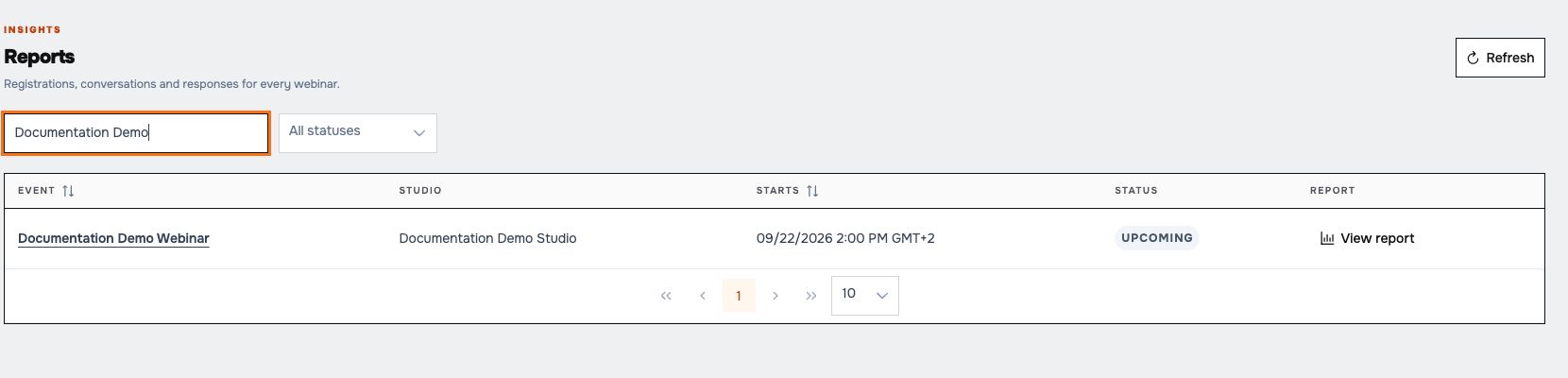 Search narrows the event list to the saved demo.
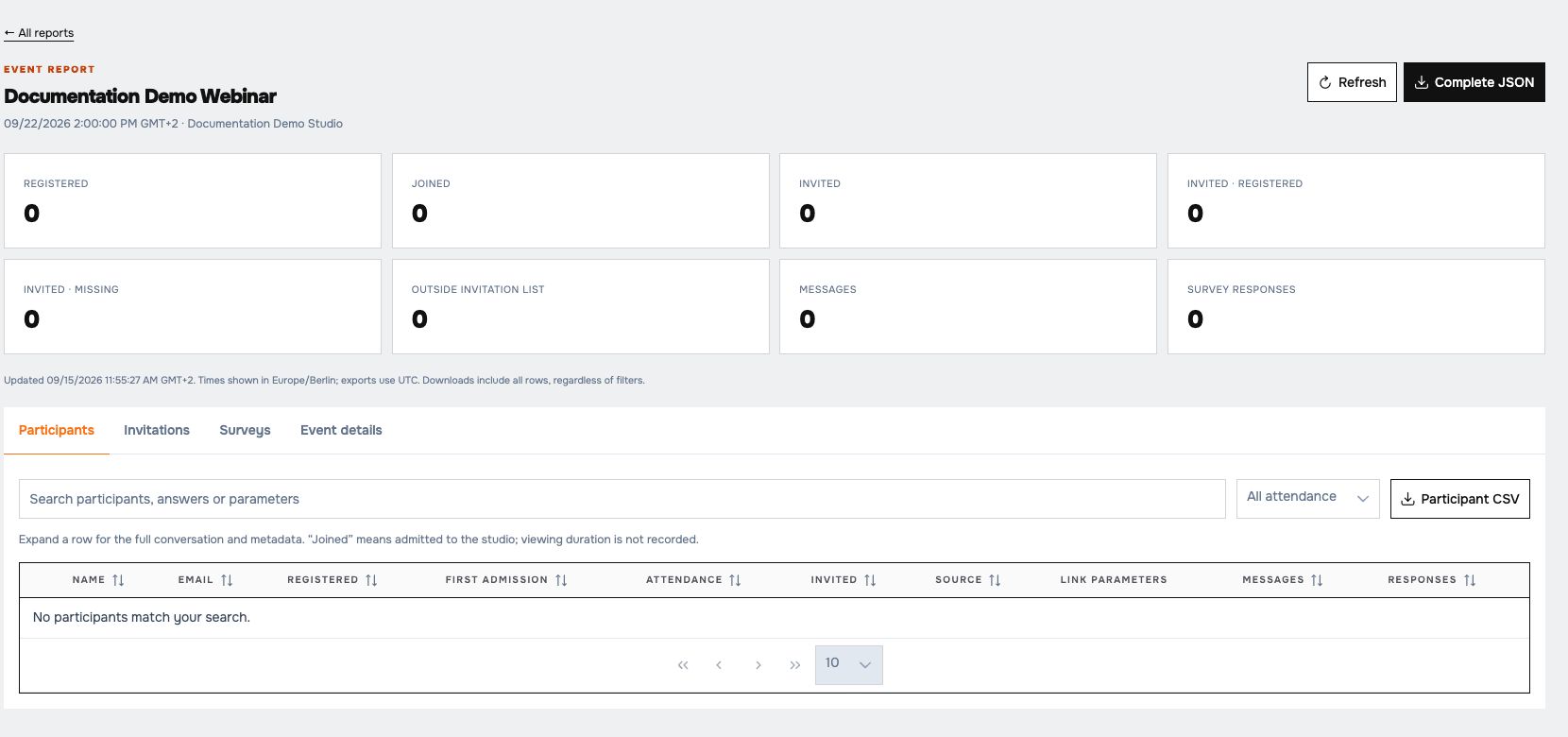 Metrics and tabs summarize the selected webinar. New webinars initially have empty results.
Explore the report
| Tab | Use it for |
|---|---|
| Participants | Search/filter registrations, compare joined/not-joined attendance, inspect registration answers, source, link parameters and activity counts. Expand a row for conversation, answers and metadata, including stored access grants. |
| Invitations | Search the saved invitation list and compare invited contacts with registration/admission. Invitation entries themselves do not send messages. |
| Surveys | Search event-linked responses and inspect the resolved question labels and submitted answers. |
| Event details | Inspect event settings and the current studio context. |
The updated timestamp and event time zone appear above the tabs. Cancelled events retain recorded admissions and activity in their reports.
Export results
- Choose Participant CSV, Invitation CSV or Survey CSV in the corresponding tab.
- Choose Complete JSON for the complete report.
- Find the downloaded file in the browser's download location.
An empty CSV contains a No records line. This is expected when the selected report section has no data.
Exports include all rows, regardless of on-screen filters. Displayed times use the event's time zone; exports use UTC. Account for that difference when comparing a CSV with the page.
Interpret the numbers
- Joined means admitted to the studio. Viewing duration is not recorded.
- Only explicitly event-linked activity is included. Standalone survey submissions and unlinked older activity are excluded.
- Email opens are not part of the report. Stored access grants are not a complete attendance history.
- Current studio context describes the studio now, not a historical snapshot of its configuration during the webinar.
- Registration source/link parameters and submitted answers are separate. Omitted or truncated link metadata is identified in the report.
For aggregate survey distributions, open the chart action on a survey card. Studios → Overall Report is currently a placeholder: its notification does not create a downloadable report. Use the webinar exports described above.