Surveys
Create feedback questions in advance, activate the survey, and attach it to your studio. You can also open its standalone participation page.
Create a survey
- Select Surveys → New Survey.
- Enter a Title and optional Description. The example uses Documentation Demo Feedback.
- Select Add question, enter Question text, and choose the question type.
- Configure its options and Required setting. Repeat for each question.
- Select Draft while preparing, or Active when ready to collect responses.
- Select Create survey. Its card shows the status and question count.
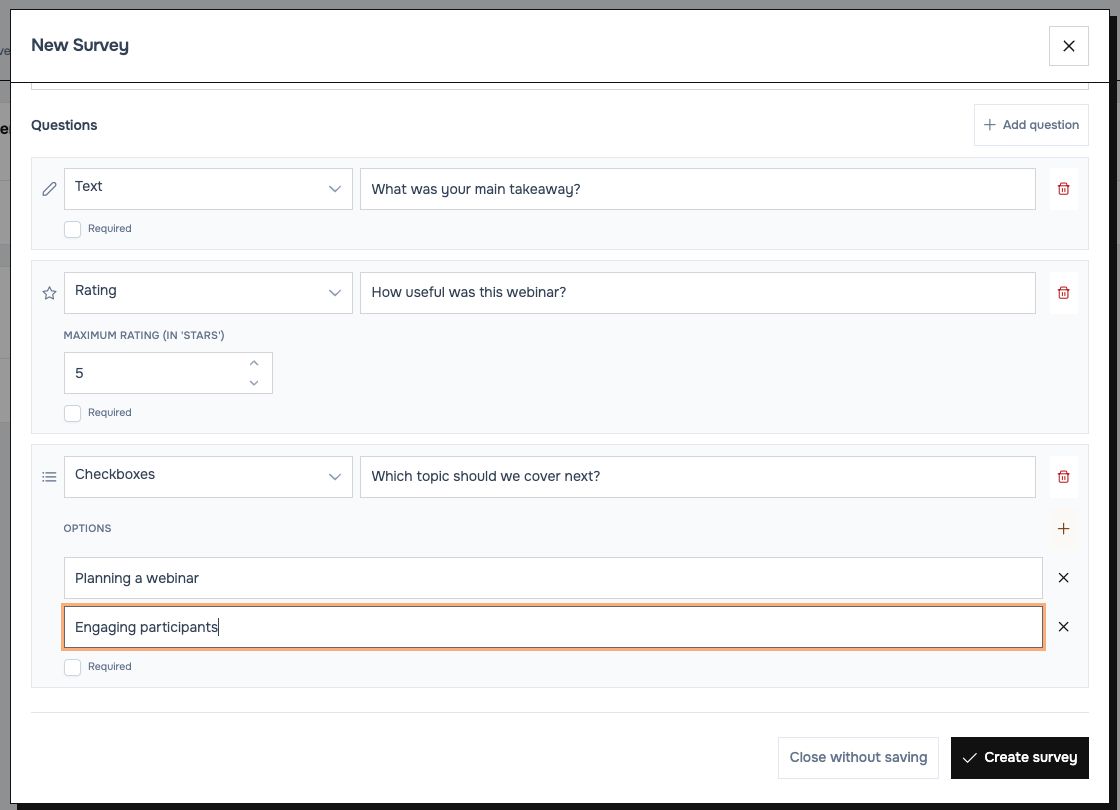 The example uses all three available question types.
| Type | Configure | Participant response |
|---|---|---|
| Text | The question and whether it is required | A written answer |
| Checkboxes | Use Add answer option and Remove answer option to edit choices | One or more choices |
| Rating | Maximum Rating (in 'stars'), from 3 to 10 | A star rating up to the configured maximum |
Use Remove this question to remove a question from the editing form. Save the survey after changing its content.
Edit, open and close
- Click a survey card to open the builder. Use Save for changes, Open for its participation page and Back to return.
- The card's pencil action opens Edit Survey; choose Save survey changes when finished.
- Draft is preparation; Active accepts responses; Closed stops collecting responses. Select the appropriate status and save.
- Use Reload to refresh the manager. The trash action opens the deletion confirmation; verify the title before confirming.
Include it in a webinar
- Join your studio as organizer and select Configure player.
- Under Surveys, select the survey. Check its status badge: use an active survey for the live session.
- On Timeline, include it in Available at start or place an Add or Focus cue. Select Save configuration.
- Start playback, then open the available survey from the player tools (it may be labeled Survey 1). See timeline actions.
Selecting a draft or closed survey does not activate it. Return to the survey editor to change its status.
Analyze responses
Select the chart action on a survey card to open its analysis. Review total responses, answered/skipped counts, written answers, rating averages and answer distributions.
 One clearly marked rehearsal response appears in the standalone analysis. It is not linked to a webinar registration.
Checkbox percentages use all survey responses as the denominator. Multiple choices are allowed, so their totals can exceed 100%. Rating distributions use answered ratings; skipped answers do not count as zero-star ratings.
For participant-linked webinar feedback and CSV export, use Reports.