Your first webinar
Use this walkthrough for a rehearsal before inviting your audience. You need a signed-in organizer account, a video, and optional handouts.
1. Prepare the content
- In Media library, select New Media and upload Demo Upload.mp4. Wait for processing to finish and preview it. Full upload instructions.
- In Surveys, select New Survey. Name it Documentation Demo Feedback, add a text question, a five-star rating and a checkbox question. Set it to Active and select Create survey.
- In File packs, select New Pack, name it Documentation Demo Resources, choose your handout and select Upload pack.
2. Create the room
- Open Studios → New Studio.
- Name the room Documentation Demo Studio and select Create studio.
- Click its card to join. Open Configure player.
- On Player, choose your uploaded video in Media and select the demo survey and file pack. Click outside each selection menu to close it.
- Open Timeline. In Available at start, select File pack - Documentation Demo Resources.
- Select Focus, click the feedback survey lane, then select the cue and set Selected cue time to 15 seconds. Select Save configuration.
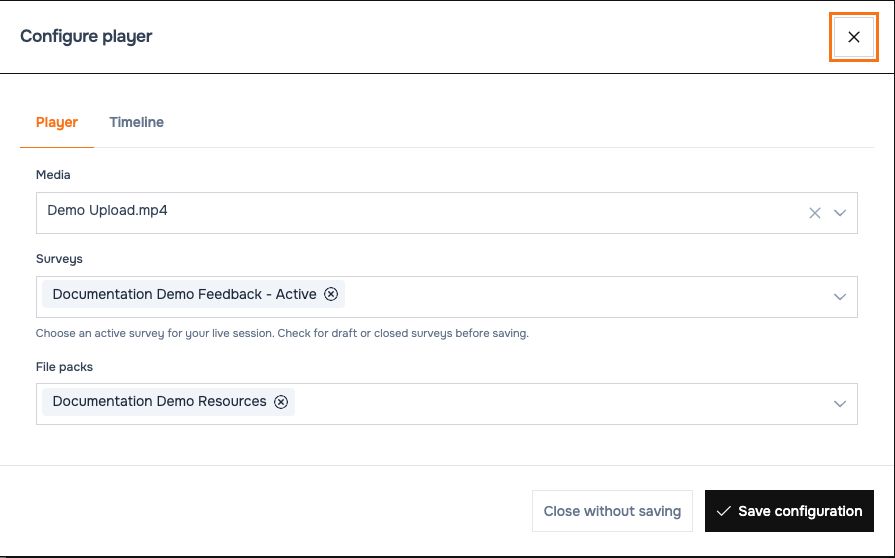 Attach the video and audience tools before starting your rehearsal.
3. Schedule the webinar
- Open Webinars → New Event.
- Choose Documentation Demo Studio and enter Documentation Demo Webinar as the title.
- Choose a future start time, duration and the intended time zone. Set capacity and visibility.
- Review Registration page, Registration form, Emails and delivery and Access Lists. For a private rehearsal, use Private event, leave contact lists empty and disable all four delivery switches.
- Select Create event. Edit the saved webinar to customize its registration page and obtain its registration link.
See Create and manage webinars for each setting. A private event is hidden from the calendar, but people with its link can still register unless blocked.
4. Rehearse and conduct
- Open the registration page and check its title, date, fields and layout. Review the attendee entry flow.
- Return to the studio as organizer. Check that the correct video and tools are loaded.
- Press play. Practice pausing and seeking; attendees follow the host-controlled playback.
- Open the resource pack from the player tools. At 15 seconds the feedback survey opens automatically. Submit a clearly marked rehearsal answer and inspect the survey analysis.
- During the webinar, monitor Connected now and answer participants through private chat.
5. Review the results
After the session, open Reports, locate the webinar and select View report. Review participants, invitations and survey responses; use the relevant CSV export or Complete JSON.
An empty report is expected before participants register or join. “Joined” means admitted to the room, not a measured viewing duration. Read the report guide.
Before inviting your audience: confirm video playback, time zone, registration page, active survey status, handouts and email settings. Share the registration link through your normal communication channel.