Player and toolbar
The VIBRIX player brings video, conversation, feedback and handouts into one place. Its toolbar on the right side lets participants ask a question, answer a survey or download resources while keeping the presentation in view. As organizer, you can prepare these tools in advance and introduce them at specific moments in the video.
Find the toolbar
Join a configured studio with a selected video. The vertical toolbar sits inside the player's right edge when no tool panel is open. Playback controls run along the bottom: play/pause, seek, volume/mute, Settings and Fullscreen.
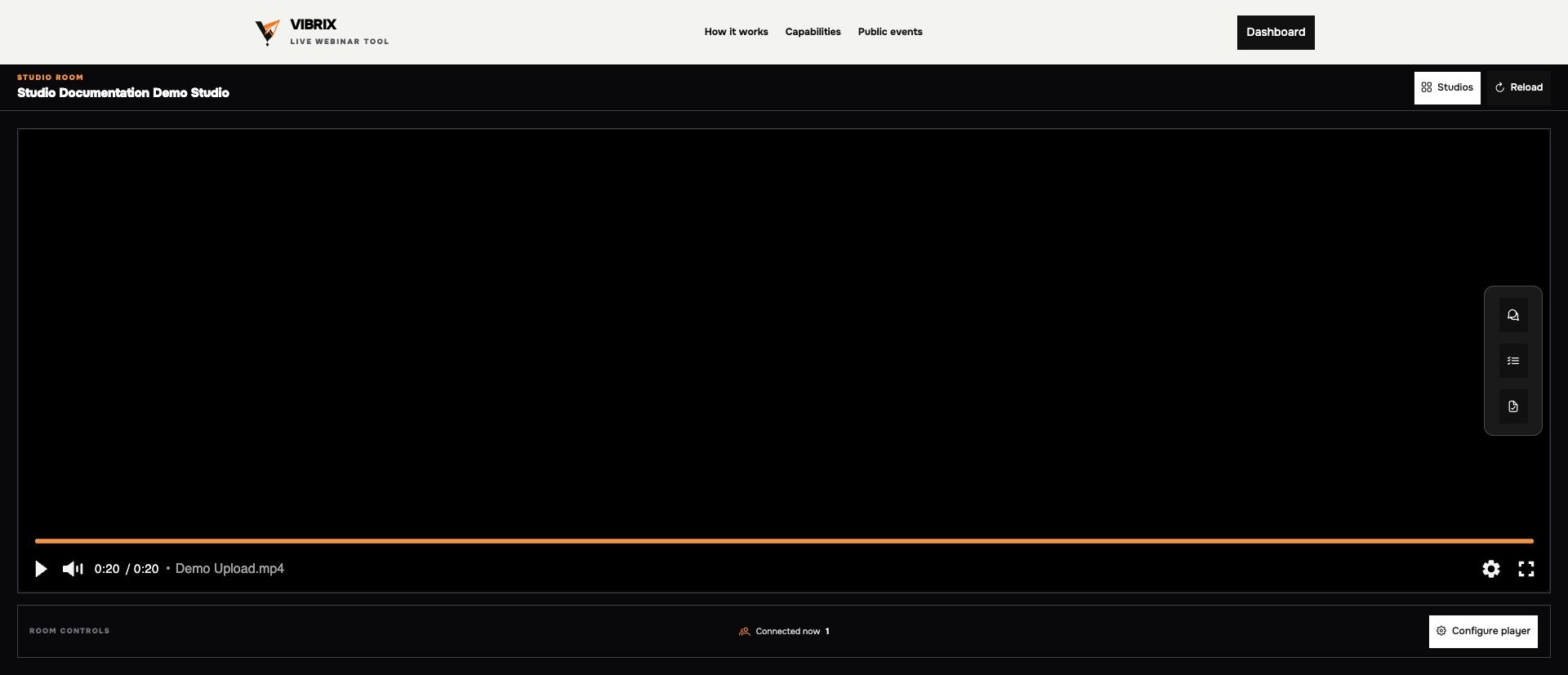 The demo player with its right-hand toolbar exposed. The video is at the end of playback.
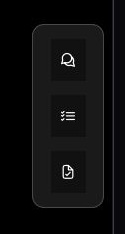 From top to bottom: private chat, feedback survey and downloadable resources.
Hover over a button to see its label. Surveys and file packs use their titles where available; numbered labels such as Survey 1 or File pack 1 identify the tools otherwise.
| Button | What opens | How to use it |
|---|---|---|
| Speech bubbles — Private chat | A private conversation panel | Attendees contact the organizer; organizers select a participant to read and reply. An orange badge signals unread messages. |
| Checklist — survey title or Survey 1 | The selected survey beside the video | Answer the questions and select Submit. Required answers must be completed. |
| Document with check mark — file-pack name | The pack's file list | Find the handout and select Download for the required file. |
Chat is available from the toolbar. Survey and file-pack buttons appear according to the tools you select and their timeline availability. Multiple available surveys or packs have separate buttons.
Open, use and close a tool
Before you begin: join the studio. For a survey or pack, the organizer must have selected it in Configure player and made it available on Timeline. Surveys must be Active to accept answers.
- Select a button on the right-hand toolbar, such as Documentation Demo Resources.
- Use the panel that opens beside the video. Scroll inside the panel if its content extends below the visible area.
- Download a file, complete and Submit the survey, or use Private chat to exchange messages with the organizer.
- Select the panel's Close button at the top right. The toolbar appears again.
- Select another toolbar button to switch to a different tool.
Result: participants can work with the session's resources without leaving the studio. Opening or closing a panel does not pause the video. The organizer continues to control shared playback; participants can adjust their local audio controls.
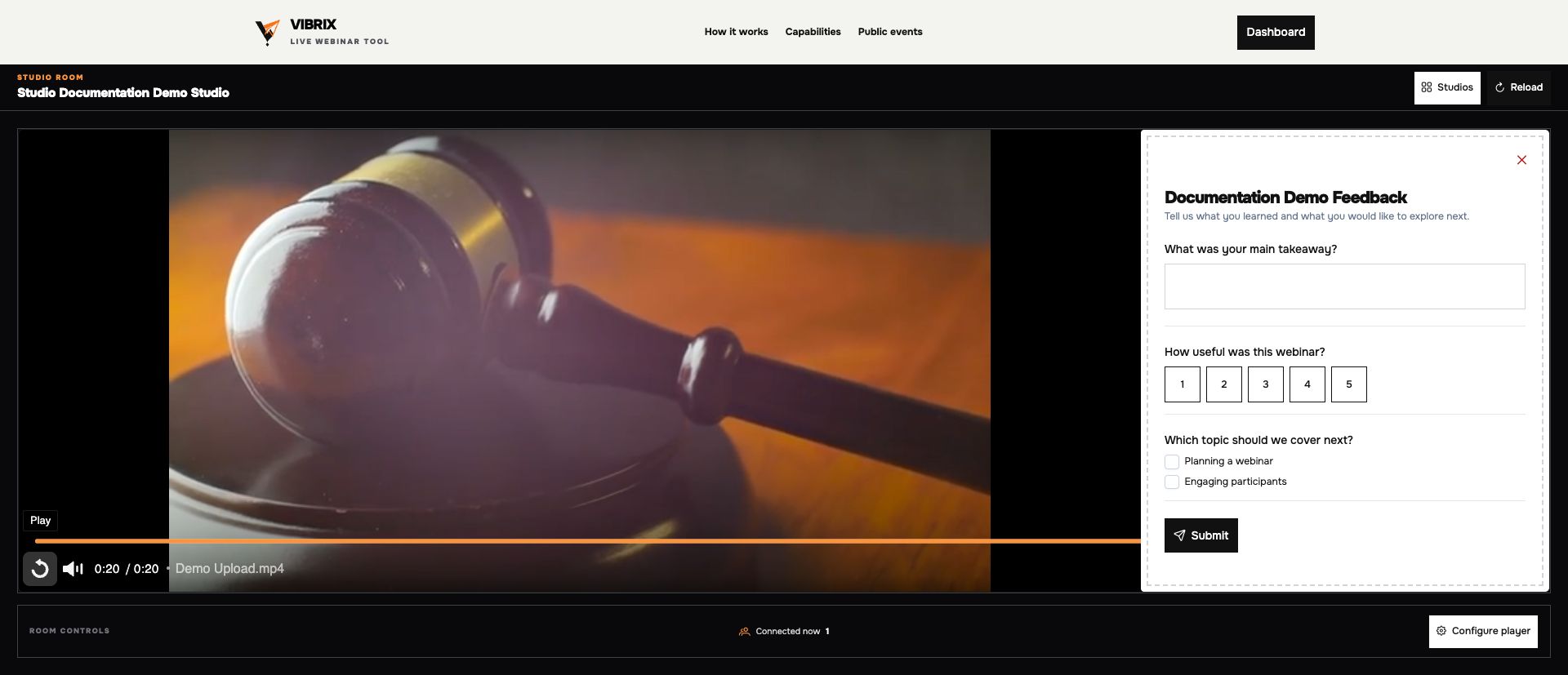 An open survey takes the toolbar's place. Close the panel to choose another tool.
Introduce tools at the right moment
Use the timeline to connect participant actions to your presentation. For example, make a worksheet available from the start, then open a feedback survey when the video reaches its closing question.
- As organizer, select Configure player in Room controls.
- On Player, select the video, surveys and file packs for the session.
- On Timeline, choose tools in Available at start. For the walkthrough, select File pack - Documentation Demo Resources.
- Add a Focus cue for the feedback survey at 15 seconds, then select Save configuration.
- Start playback. The pack is available from the toolbar; the survey becomes available and opens when playback reaches the cue.
Add makes a tool available without opening it. Focus makes it available and opens its panel. Remove takes it out of the toolbar and closes its panel if open. See Timeline actions for cue editing and seeking behavior.
Opening a toolbar button yourself changes your own view. To direct participants to a tool during playback, schedule a Focus cue. Participants can close a focused panel and continue using the toolbar.
Help participants find a tool
- If the toolbar is hidden, close the open tool panel.
- If a survey or pack is missing, check both its selection on Player and its availability at the playback position on Timeline.
- If the survey cannot accept answers, check its status in Surveys and save it as Active.
- On narrow screens, scroll within the tool panel; if the toolbar contains more buttons than fit, scroll the toolbar to reach the others.
Related: Run the live room, prepare surveys, prepare file packs, troubleshooting.