File packs
A file pack groups the resources participants can open during your webinar. Prepare a handout, worksheet or other supported file before starting.
Create a pack
- Select File packs → New Pack.
- Enter Pack name, for example Documentation Demo Resources.
- Drop files into the uploader or use Dateien durchsuchen (“browse files”). The selection counter supports up to 99 files.
- Select Upload pack and wait for completion. If an upload fails, inspect the error before retrying.
- Find the new pack in the manager and use Preview to inspect it.
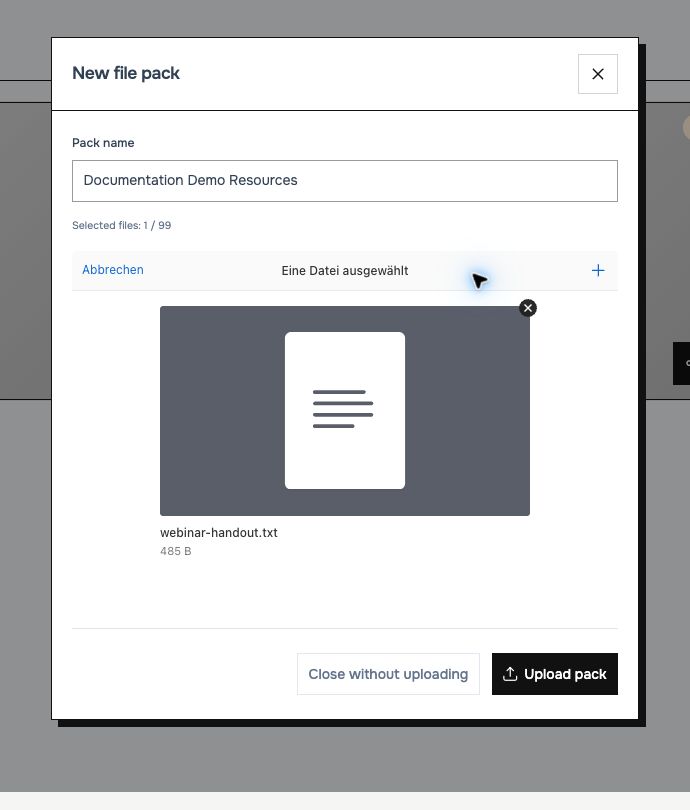 Name the collection, select its files, then upload the pack.
Manage the contents
Click the file-pack card to open its management dialog.
- To rename it, edit Rename and select Save pack name.
- In Files, use Open file in a new tab to inspect a file or Copy file link to obtain its direct link.
- To add files, use Append files, select the files, then choose Upload selected files. Clear selected files clears that pending selection.
- Use Remove file from pack for an individual file, reviewing the confirmation before accepting.
- Select Close file pack when finished.
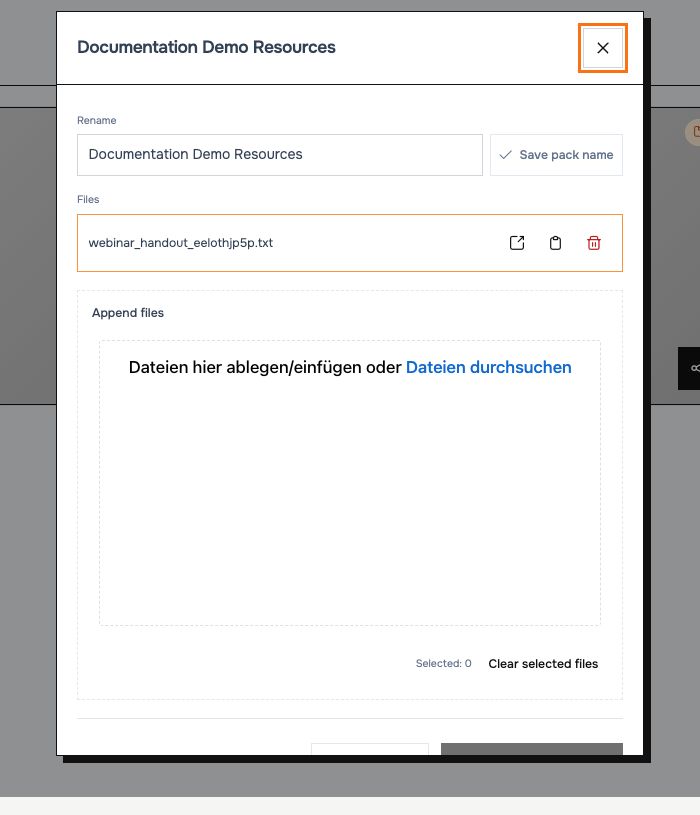 The management dialog separates renaming, existing files and pending uploads.
Share and present
- The card's share icon copies the pack's viewing-page link. Preview opens that page so you can inspect it before sharing with intended readers.
- Copy file link shares a specific file rather than the whole collection.
- To present it inside the webinar, select the pack in Configure player → File packs, set its Timeline → Available at start or add a timed cue, then Save configuration. Start playback; participants can open available packs from the player tools.
- Use timeline actions to make a pack available, remove it from the tools, or bring it into focus at a chosen video time.
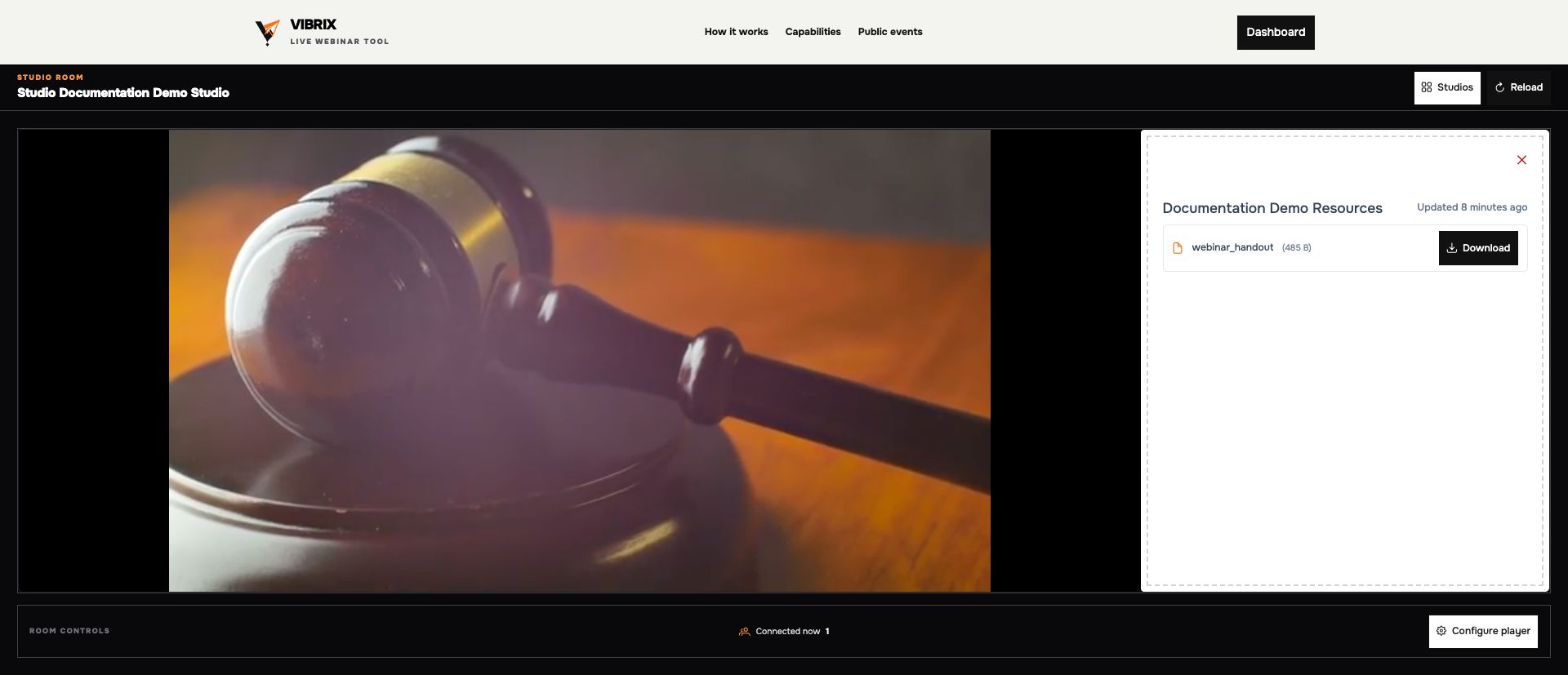 The demo handout is available through its Download button.
Removing a tool from the timeline does not delete the file pack. To delete the stored pack, select Delete on its manager card and review the confirmation. Check which studios use it first.
Next: Run the live room.