Media library
Upload the video you want to present, wait for processing, and preview it before attaching it to a studio.
Upload a video
- Open Media library → New Media.
- Drag your video into the upload area or select Dateien durchsuchen (“browse files”) / Mein Gerät (“my device”). For the walkthrough, choose Demo Upload.mp4.
- Start the upload if the uploader presents an upload button. Keep the page open while it transfers.
- Close the uploader after completion. Use Reload to refresh the media list.
- Wait until processing is complete, then click the video preview on its card. Confirm that its picture and sound play correctly.
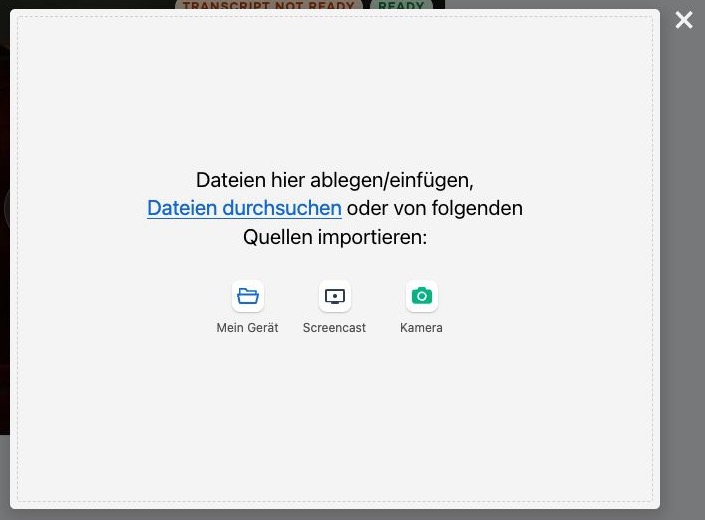 The uploader also offers Screencast and Kamera sources. Its controls currently use German labels.
Screencast records your screen and Kamera records a camera source through the uploader. They require browser permissions and available devices. These are content-capture options; selecting them does not start a live camera broadcast to your studio audience.
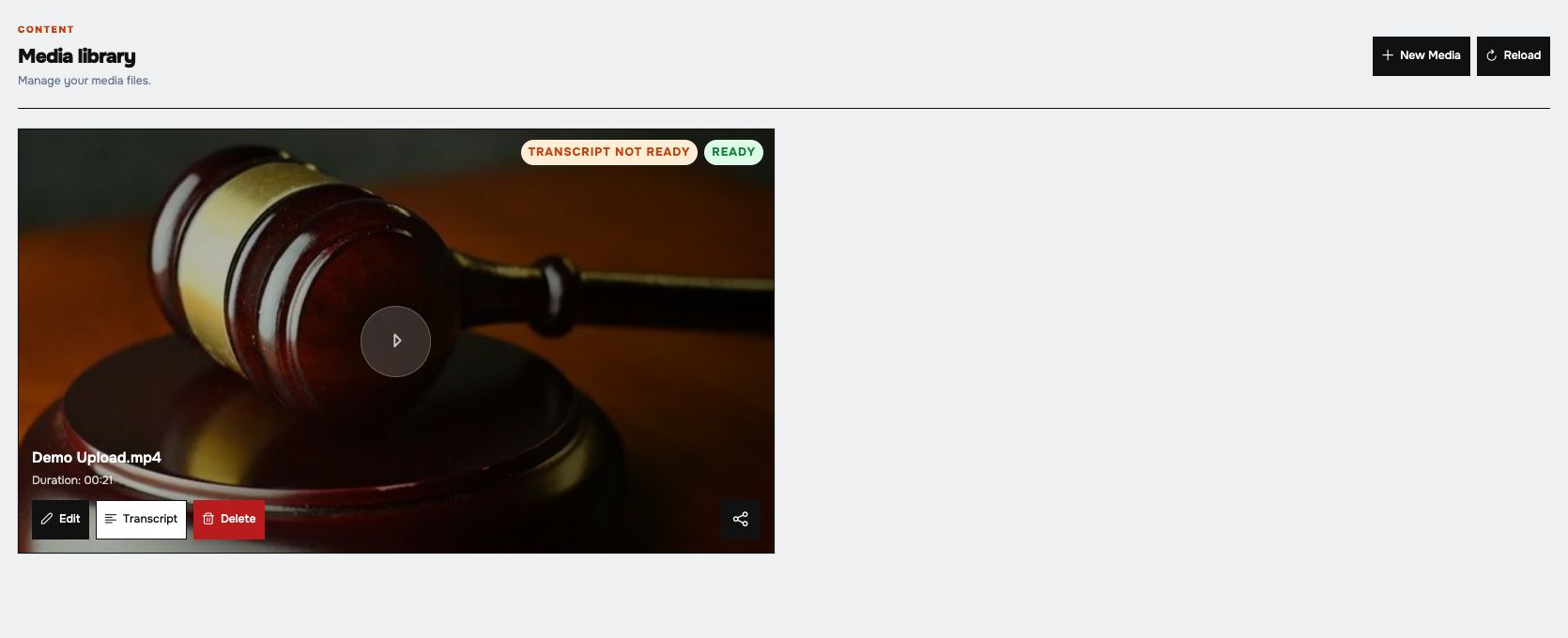 Check the video in the library before using it in a webinar.
Rename and preview
- Select Edit on the media card, change Filename, and choose Save filename.
- Click the card's video preview to open Video Preview.
- Play the video and use Close video preview to return.
Renaming helps you identify the correct entry in Configure player → Media.
Review the transcript
- Select Transcript on the media card.
- Read the existing transcript or enter one if none is available.
- Make your corrections and select Save transcript. The button requires a nonempty changed transcript.
- Use Close to return; unsaved edits require a discard decision.
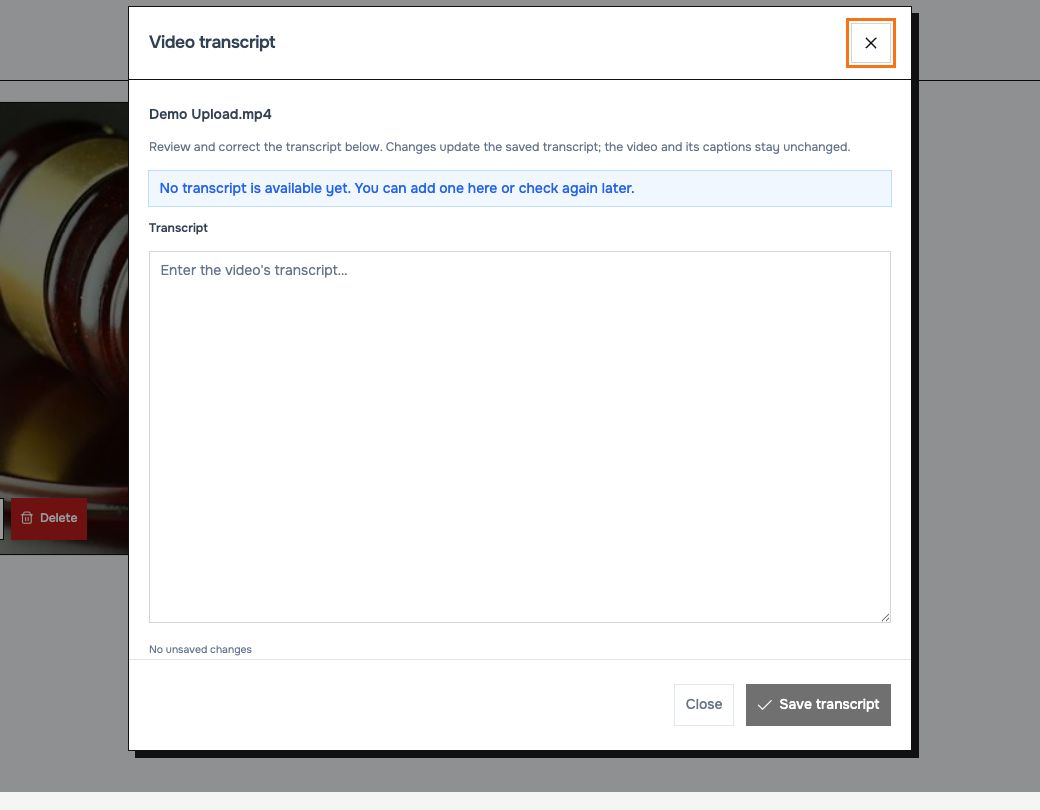 Editing this text updates the saved transcript. It does not change the video or its captions.
If loading fails, select Retry. If saving fails, your draft remains in the dialog so you can retry without retyping it.
Share a video
- Open the media card's share-link action.
- Set Link valid until to the required expiration date and time; the initial selection is approximately 24 hours from now.
- Select Copy share link. This generates a link using the selected expiration and copies it.
- Share the copied link with your intended viewers. Use Close sharing to return.
A media watch link plays a video separately from webinar registration. To invite people to a scheduled event, use its registration link. Expired watch links need to be generated again.
Delete media
Select Delete on the relevant card and review the confirmation before accepting. Make sure you are deleting the intended video and check studios that use it first. The demonstration walkthrough preserves its uploaded video.
Next: Configure your studio or prepare surveys.